
InterSilica user guide
Every control, in signal order: SMOOTHER, then WIDTH, then LIMITER. A freshly inserted InterSilica barely touches the track: SMOOTHER's DEPTH starts at 0 and its nodes at the top, WIDTH at 0, and LIMITER just under 0 dB.
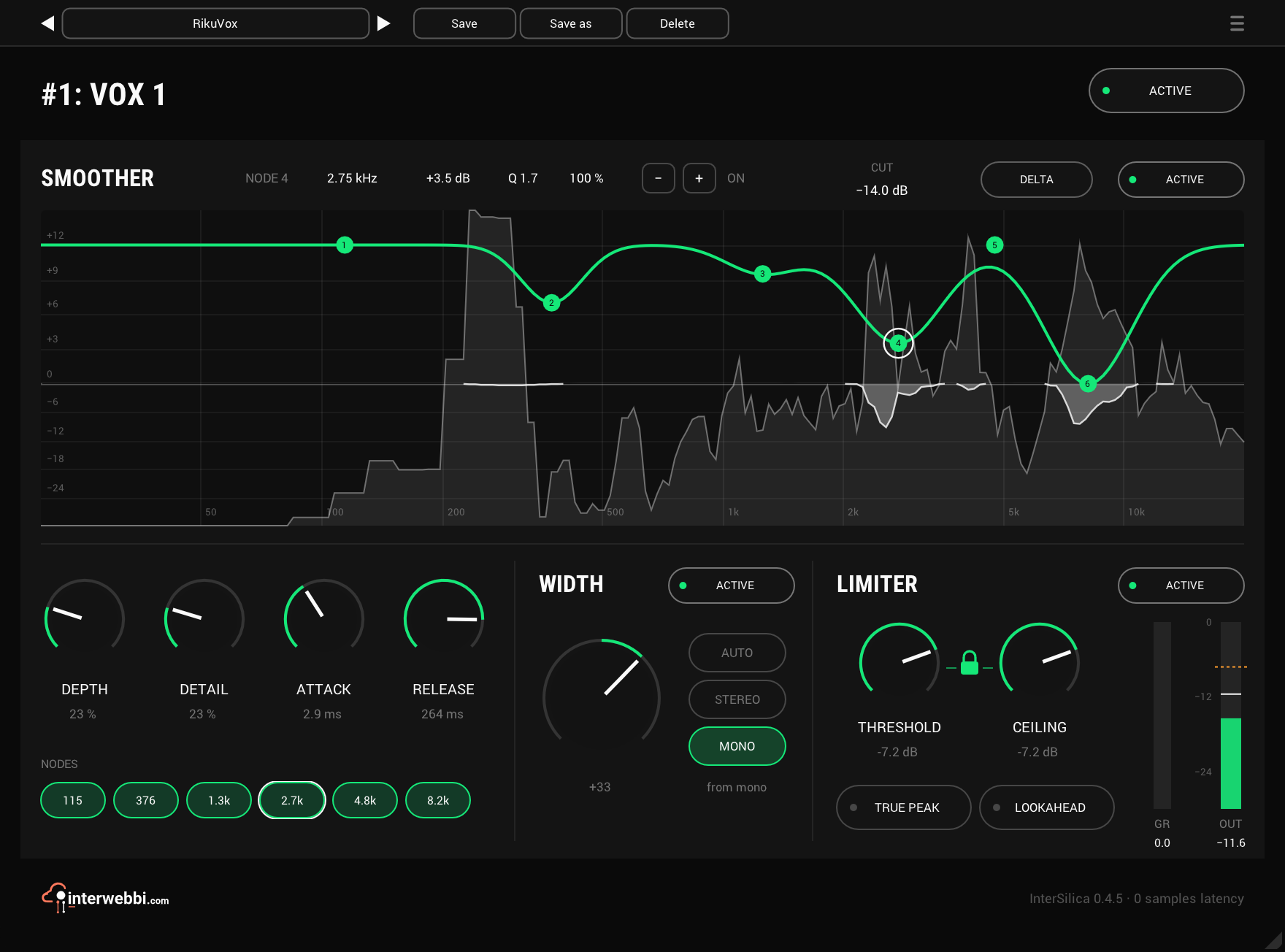
The analyzer
The display shows the input's spectrum against the music around each frequency: the 0 line is the music's own level, and anything standing above it is a resonance. The curve in the accent colour joins the six nodes. The white shape hanging down from 0 is what SMOOTHER is cutting, on the same dB scale: a shape reaching −6 is a 6 dB cut.
CUT in the section's header shows the deepest cut at that moment and holds it for 1.5 s. The analyzer stops while the plug-in window is closed, so it costs no CPU then.
Nodes
Six · height +12 to 0 · Q 0.3 to 8 · depth 0 to 100%, default 100%
The nodes set what counts as a resonance. Each starts at the top, +12, where SMOOTHER cuts nothing; drag one down and SMOOTHER starts working in that part of the spectrum, harder the lower it goes. This is the opposite way round to some suppressors: down means more.
They start at 100 Hz, 300 Hz, 800 Hz, 2.5 kHz, 5 kHz and 10 kHz, all on. Drag a node to move it, scroll on it for Q, double-click it to put it back where it started, and shift-click it to switch it off or on. Right-click a node for a small card with its Q and its own DEPTH; Option-drag sets Q and Cmd-drag its depth, straight on the node. A node's own depth can only make it gentler than the main DEPTH.
The chips under the knobs select a node with the first tap and switch it on or off with the second. The header shows the selected node's frequency, height, Q and depth, and its − and + set the Q.
Depth
0 to 100%, default 0%
How hard SMOOTHER cuts what the nodes let through, up to 20 dB per resonance. At 0% it cuts nothing, so a new InterSilica does nothing until you turn DEPTH up and pull a node down.
Detail
0 to 100%, default 60%
How finely SMOOTHER tells a resonance from the material around it. Higher picks out narrower peaks; lower treats broader areas as one.
Attack and release
Attack 0.5 to 50 ms, default 30 ms · Release 10 to 500 ms, default 40 ms
How fast a cut comes in and lets go. The values are for 2 kHz: SMOOTHER is faster above that and slower in the low end, where a fast cut would be heard as movement.
Delta
Off by default · not saved
Plays only what SMOOTHER is removing, so you can move the nodes while listening to exactly what they take. It stays on until you click it off, even with the window closed. It isn't saved with the session or a preset and can't be automated, so a session never opens in DELTA.
Width
−100 to +100, default 0
One knob. 0 leaves the signal untouched, left of centre narrows the image and −100 is mono; right of centre widens it, and +100 on a stereo source raises the side by 6 dB and adds a side built from the mid.
It stays mono-compatible at any setting: sum it to mono and you get exactly the input's mono sum, sample for sample. What WIDTH adds stays out of the bass, below 120 Hz, while a stereo source's own wide bass is left as it is. Widening makes stereo playback louder by what it adds, so match levels before you compare.
On a mono track with a mono output there is no image to set: WIDTH reads “mono track: inert” and does nothing. Put InterSilica on as mono in, stereo out to build an image from a mono source.
Auto, stereo, mono
Default AUTO
Whether WIDTH treats the source as stereo or builds an image from mono. AUTO listens as audio starts, decides, shows its choice under the buttons and holds it, so it cannot flip in the middle of a song. It reads “listening” until it has decided, and decides again after 2 s of silence.
STEREO and MONO set it yourself. MONO builds an image from the mid and adds it to the source's own side, so on a stereo source the two stack.
Threshold, ceiling and the lock
Both −30 to 0 dB · defaults 0 dB and −0.3 dB
THRESHOLD is where limiting starts and CEILING the most that comes out. Everything is turned up by the gap between them, so pulling THRESHOLD down drives the limiter harder: louder and denser. At the defaults, switching LIMITER on turns everything down by 0.3 dB, though nothing is limited.
The lock between the knobs links them: turned either way, one moves the other by the same dB, so the loudness stays put while you limit harder. At the end of the range both stop. The lock is saved with the session.
Release is automatic and follows the music. At zero latency it catches each peak, holds for 2 ms and lets go over 10 ms, so nothing clips, while a slower stage rides sustained level.
Lookahead
Off by default · 1.5 ms when on
With LOOKAHEAD on the gain is in place 1.5 ms before each transient arrives. It sounds cleaner and less dense than the zero-latency mode. The plug-in reports the 1.5 ms to the host, which compensates for it, and the footer says so.
The 1.5 ms stays even with LIMITER switched off, so bypassing the limiter never shifts your timing. Switching LOOKAHEAD on or off dips the audio for a few milliseconds.
True peak
Off by default
Holds the ceiling on inter-sample peaks too, the ones a D/A converter can produce between samples. It needs the lookahead for that, so TRUE PEAK holds LOOKAHEAD on: its pill shows on, dimmed, with “held by TRUE PEAK” under it, and returns to its own setting when TRUE PEAK goes off. While TRUE PEAK is on, OUT reads true peak.
GR and out
GR shows LIMITER's gain reduction and OUT the output level, each with a held peak line and a number under it that holds its peak for 1.5 s. OUT also marks the ceiling. The gain reduction is reported to the host too, so it shows in REAPER's and Studio One's own meters.
Active, presets, menu
ACTIVE in the header bypasses the whole plug-in, and each stage's own ACTIVE pill bypasses just that stage. A stage that is off isn't processed at all and costs no CPU. Switched back on, it fades in, and SMOOTHER needs 50 to 100 ms before it starts cutting again.
The preset bar across the top saves, loads, steps through and deletes presets, in any host. The menu (☰) has the window sizes, the track colour as the accent in REAPER, the licence and the update check, which asks at most once in ten minutes and never installs anything.