
InterTone user guide
Every control, from the display down. InterTone holds a source to a target tone: you set the target once, and it keeps pulling the sound back to it.
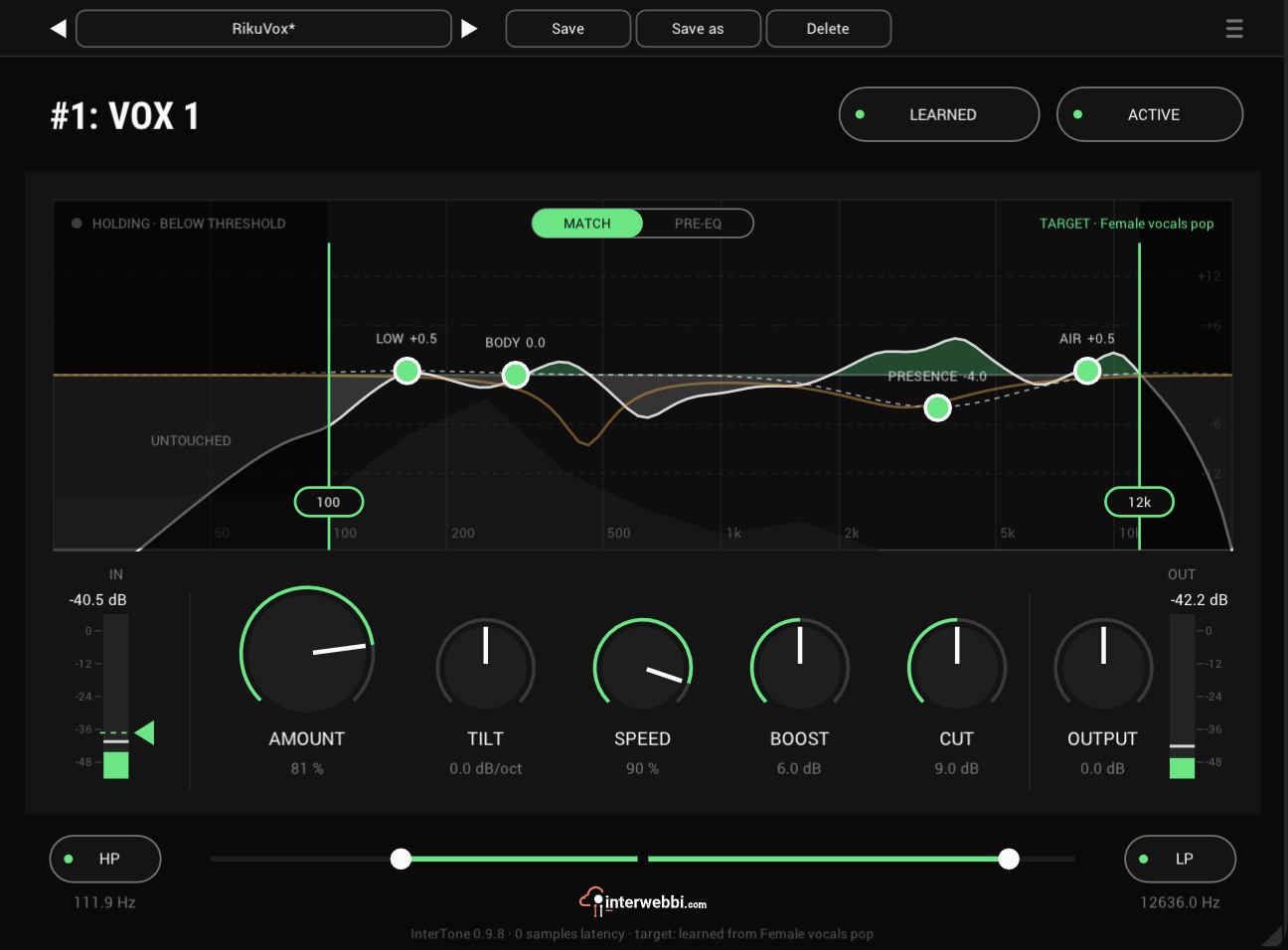
The display
The dashed line is the target, with the region handles riding on it. Over it runs the correction InterTone is applying right now, and the display says whether it is adapting or holding, and what the target is: balanced, learned from the input, or a reference file's name.
Pre-EQ
Four nodes · ±18 dB, 20 Hz to 20 kHz, Q 0.3 to 10 · flat by default
A four-band parametric EQ in front of InterTone, after HP and LP. MATCH / PRE-EQ at the top of the display chooses which one you're editing. In PRE-EQ the four amber nodes come up and InterTone's curve dims; in MATCH your EQ stays in view as a dim amber line.
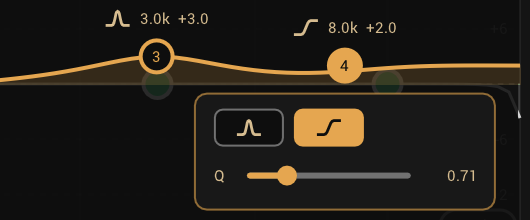
Drag a node for frequency and gain, and scroll on it for Q. Right-click it for Q and, on nodes 1 and 4, a choice of bell or shelf; nodes 2 and 3 are bells. Double-click puts a node back where it started, and shift-click switches it on or off.
InterTone hears your pre-EQ and holds what comes out of it, but always leaves half of your EQ move in. So a pre-EQ boost still counts, even at a high AMOUNT.
Tone regions
±18 dB each · LOW 60 to 300 Hz · BODY 150 to 800 Hz · PRESENCE 1 to 6 kHz · AIR 6 to 16 kHz
Each region boosts or cuts the target tone in its own range, like an EQ band, and leaves the rest alone. Drag a handle up or down for its level and sideways for its centre frequency. Double-click a handle to put it back at its default. Shift-click switches the region off, and InterTone then leaves that range alone.
Processing range
20 Hz to 20 kHz, off at the ends
Drag the two tabs at the foot of the display inward to tell InterTone where to work. Outside the range the sound is untouched, and the correction fades out over a third of an octave past each edge. Double-click a tab to send that edge back to its end.
Learn target
Out of the box InterTone aims for a balanced tone, the same energy in every octave, like pink noise. LEARN swaps that for a tone you choose. Get the vocal sounding right at soundcheck, have the singer sing a verse and learn it from the input. Or learn from a reference track (WAV, AIFF, MP3 or FLAC), or start from a factory target: female or male speech, pop vocals or rock vocals. TILT and the regions then move it from there.
A click always opens a menu first, so one stray click during a show cannot overwrite the soundcheck. The same menu saves a learned target under a name, loads it on any other track and deletes it.
Amount and tilt
Amount 0 to 100%, default 50% · Tilt −6 to +6 dB per octave, default 0
AMOUNT sets how hard InterTone pulls toward the target, the regions included: at 50% a +6 dB region gives you +3 dB. TILT tilts the whole target darker or brighter around 1 kHz.
Speed
0 to 100%: 5.6 s to 0.16 s
The attack: how fast InterTone reacts, from 5.6 s at 0 to 0.16 s at 100. Slow for a vocal, fast for drums. The release is ten times faster, never under 0.1 s, so it lets go quickly even at slow settings.
Boost, cut and output
Boost 0 to 12 dB, default 6 · Cut 0 to 18 dB, default 9 · Output ±24 dB
BOOST and CUT set the most InterTone may boost or cut at any frequency. BOOST is lower by default, because a boost on a live mic brings it closer to feedback. It caps a region's boost too: if a region stops short, turn BOOST up. OUTPUT sets the output level.
Threshold
The wedge on the input meter, default −40 dB
Below the wedge InterTone stops and holds the EQ where it was, so it doesn't chase the stage between phrases and put that tone on the next one. It is not a gate: it mutes nothing. LEARN counts only what is above it.
HP and LP
HP 20 Hz to 1 kHz · LP 1 to 20 kHz
A high-pass and a low-pass filter, each with its own on and off switch, first in the chain. The rumble and hiss they take out never steer InterTone, and it never boosts back what they cut.
Active, presets
ACTIVE bypasses the whole plug-in.
The preset bar across the top saves, loads, steps through and deletes presets. A preset saves every setting, the learned target included, and a star after its name shows you've changed something since.