
InterVerb user guide
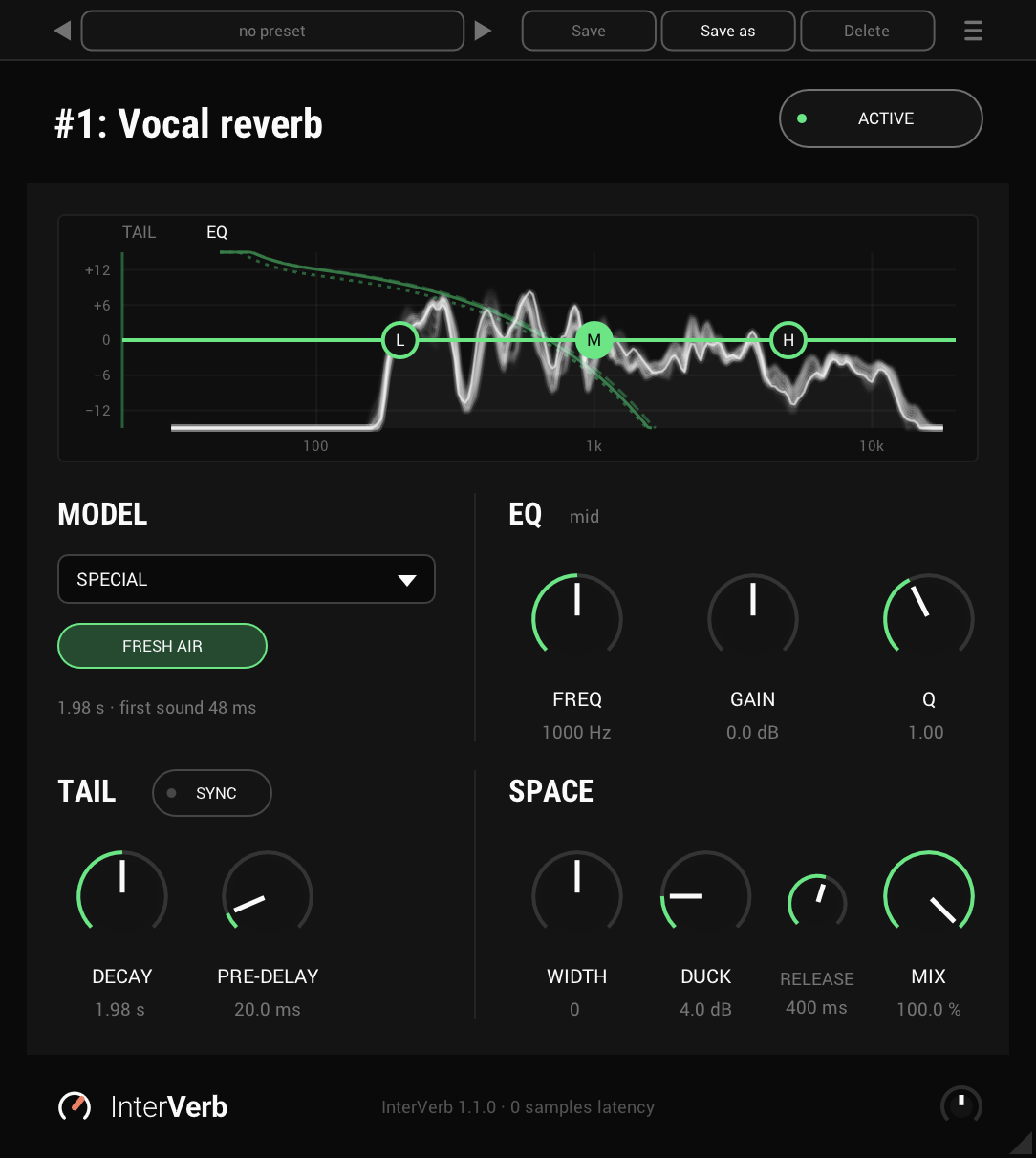
Every control, from the display at the top to OUTPUT in the footer. A freshly inserted InterVerb plays the first Plate with its own DECAY, no PRE-DELAY, the EQ flat, WIDTH at 0, DUCK off and MIX at 100%, the reverb alone.
Active
On by default
ACTIVE in the header switches the whole plug-in on and off, OUTPUT included. Off, the signal passes exactly as it came in.
The display
Across the top
The reverb's tail and the EQ, drawn together. The tail's curve shows how the reverb dies away: its length across is fixed for each variant, so a longer DECAY draws a longer, flatter curve. The EQ's line runs through its three nodes, L, M and H.
While sound plays, the reverb's spectrum shows as a slow, smooth line behind the EQ, with the moment just gone trailing behind it. It is the reverb after the EQ and DUCK, before MIX, and it fades away when the reverb falls silent. It is drawn only while the panel is open.
Drag a node to move its band in frequency and gain. Click a node and FREQ, GAIN and Q below are that band's.
Model
Plate by default
Plate, Hall, Room or Special, picked from the list. A new model starts on its first variant.
Variants
1 by default
Plate, Hall and Room have three variants each, numbered, and Special has Fresh air, an open, airy reverb for vocals. Every variant is set to the same loudness. Switch variants and the old tail rings out while new sound goes to the new one, so a change between songs is smooth. Until the old tail has died away, the plug-in works a little harder.
Length and first sound
Under the variants
How long the reverb rings at 1 kHz with DECAY as it is, and when its first sound comes after the dry, PRE-DELAY included.
Sync
Off by default
Puts DECAY and PRE-DELAY in time with the host. DECAY is then a note value, and the reverb rings at 1 kHz for that note's length: a bar at 120 bpm is 2 seconds. A bar follows the host's time signature. When the tempo changes, the reverb follows once it settles.
Decay
0.1 to 16 s · the variant's own by default
How long the reverb rings, shown as its time at 1 kHz. The lows and the highs move with it, so the variant keeps its own colour. Turn it while the reverb rings and the tail already sounding stretches or shortens with it, without a gap.
With SYNC on it is a note value, from an eighth-note triplet to four bars, dotted and triplet included, 1/2 by default. Click the value to type a time, or pick a note from its list.
Pre-delay
0 to 250 ms · 0 by default
Holds the reverb back after the dry, on top of the variant's own start, and the dry stays on time. With SYNC on it is a note value from a 1/64 to a quarter note, or 0.
EQ
±12 dB · 0 by default
Three bands on the reverb alone: a low shelf, 20 Hz to 1 kHz, 200 Hz by default; a mid band, 100 Hz to 10 kHz, 1 kHz by default, with its Q from 0.3 to 6; and a high shelf, 1 to 20 kHz, 5 kHz by default. The dry is never touched.
FREQ, GAIN and Q set the band picked in the display, named beside the EQ title. Q is the mid band's alone, and dims for the shelves.
Width
-100 to +100 · 0 by default
InterSilica's width, working on the reverb alone, so the dry is never touched. Right widens the reverb and left narrows it towards mono.
Duck and release
DUCK off to 24 dB · RELEASE 50 to 2000 ms, 400 ms by default
InterTape-delay's duck. DUCK is how far the reverb drops while the dry plays. It listens to the input against its own recent peak, so it works whatever the input level and catches quiet words too. RELEASE is how fast the reverb comes back once you stop.
Mix
0 to 100% · 100% by default
100% is the reverb alone, for an aux return, and 0% the dry alone. In between, the two are blended at equal power, for an insert.
Output
-24 to +24 dB · 0 dB by default
The small knob in the footer, right. Turn it or use the wheel, and its value shows above it while you do. Option-click (Alt-click on Windows) puts it back to 0 dB, and a double-click lets you type a value.
Presets and the menu
The preset bar across the top saves, loads, steps through and deletes presets, in any host. The menu (☰) has the accent colour, the window size, the licence and the update check, which never installs anything. Every value under a knob can be clicked and typed into, and a note value opens its list.