
Mic preamp
InterMic
A warm mic preamp for live vocals, with air, a gain rider, stage bleed taken out by a custom-trained AI model, and feedback caught before it howls.
- Latency
- 0 samples
- CPU
- 0.9%, Apple M4 Pro
- Formats
- VST3, Audio Unit
- Platforms
- macOS, Windows
- Channels
- Mono, stereo
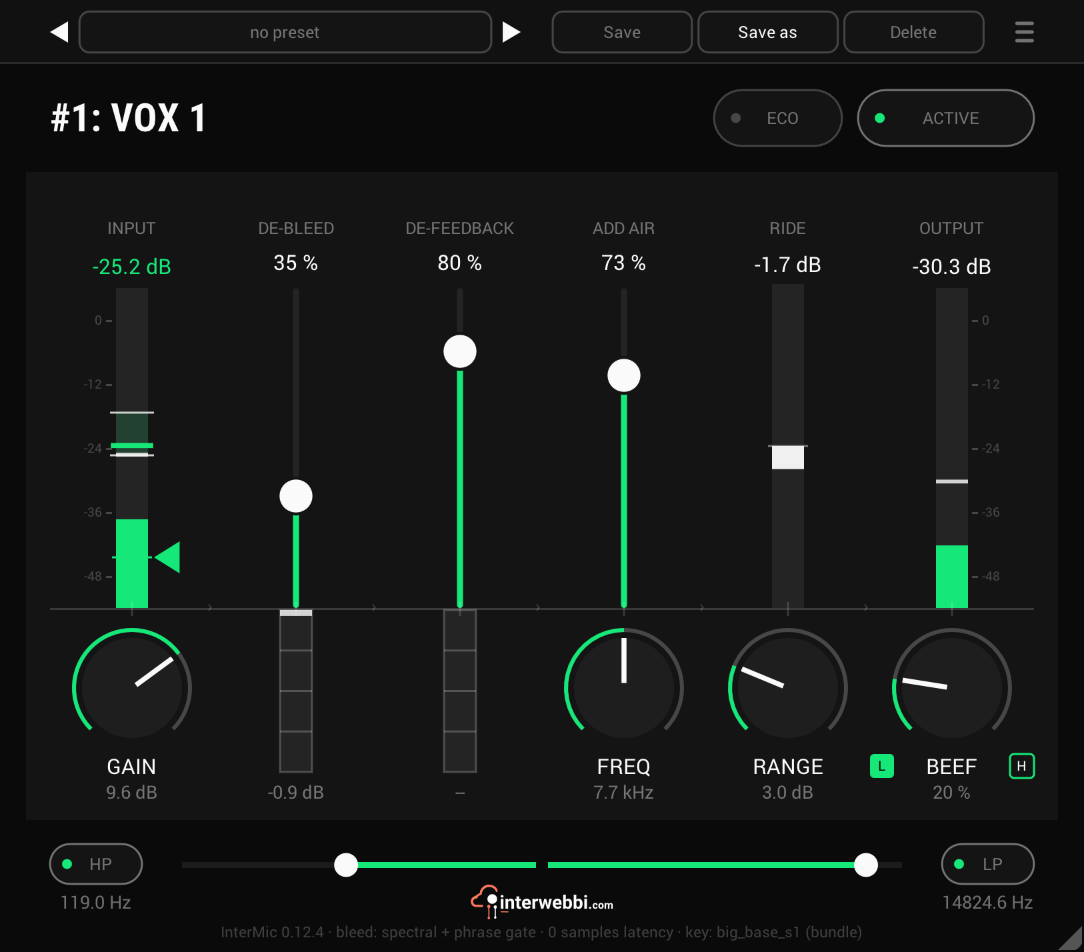
On the panel
Gain
The preamp's input gain, ±24 dB.
Beef
Warm saturation: L thickens the body, H adds bite on top.
Add air
Smooth air on top of the voice. FREQ sets where it starts.
Ride
A gain rider, working within RANGE, up to 12 dB.
De-bleed
Turns the stage sound down around the voice, between the words and between the lines.
De-feedback
Finds feedback and notches it before it becomes a howl.
Rider target level
The band on the input meter: drag it to where the signal should sit, and RIDE keeps it there.
Rider floor
The wedge beside the input meter. Below it RIDE stops riding, so it doesn't pull the stage up between phrases.
How I use it
On a live vocal
- Set the target: the band on the input meter, where RIDE holds the voice. The default, −20 dB, is usually where I want it, so I often leave it.
- Bring the voice up to it with GAIN. Aim for the vocal to sit around the band.
- DE-BLEED, about 30%. On a quiet stage with a strong singer, 20 to 30% is enough, and buys me a few dB more gain before feedback. On a loud stage and singer I might go further.
- DE-FEEDBACK all the way to 100% when working with live vocals.
- LP to shave the very top. Taking off the highest frequencies takes away more of what can feed back.
- ADD AIR to put the detail back. I end up between 40 and 60%. Where FREQ goes is taste: move it until the voice opens up again.
- Let RIDE work about 3 dB: set RANGE to around 3 dB.
- HP around 120 to 150 Hz, unless something after InterMic already cuts the lows (InterTone, for example).
On drums and more
InterMic works wonderfully on a kick drum. Leave DE-BLEED and DE-FEEDBACK off, and use ADD AIR to bring out the click. It does the same for a snare and cymbals, and sometimes keyboards too.
The preamp
Start here. GAIN brings the voice up. BEEF adds warm, mostly second-harmonic saturation: L thickens the body, H adds bite on top.
Add air
Smooth air on top of the voice, without the hiss and harshness. It brings back the air that LP takes off. The fader sets how much and FREQ where it starts, and the panel shows the frequency it lands on.
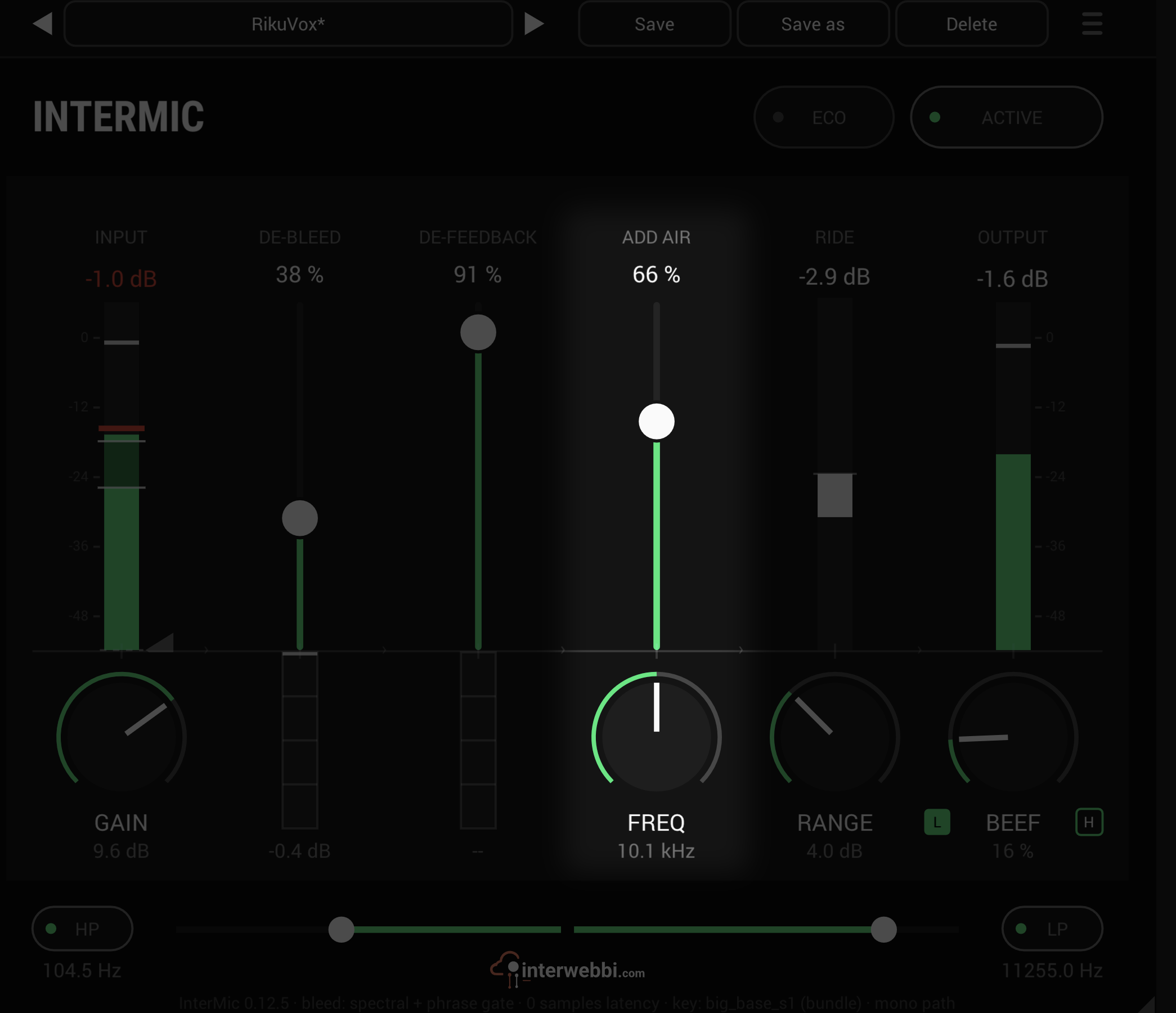
- Amount
- 0 to 100%
- Freq
- 50 to 130% of the LP frequency
The extras
Three things a vocal channel on a stage needs, in the same insert.
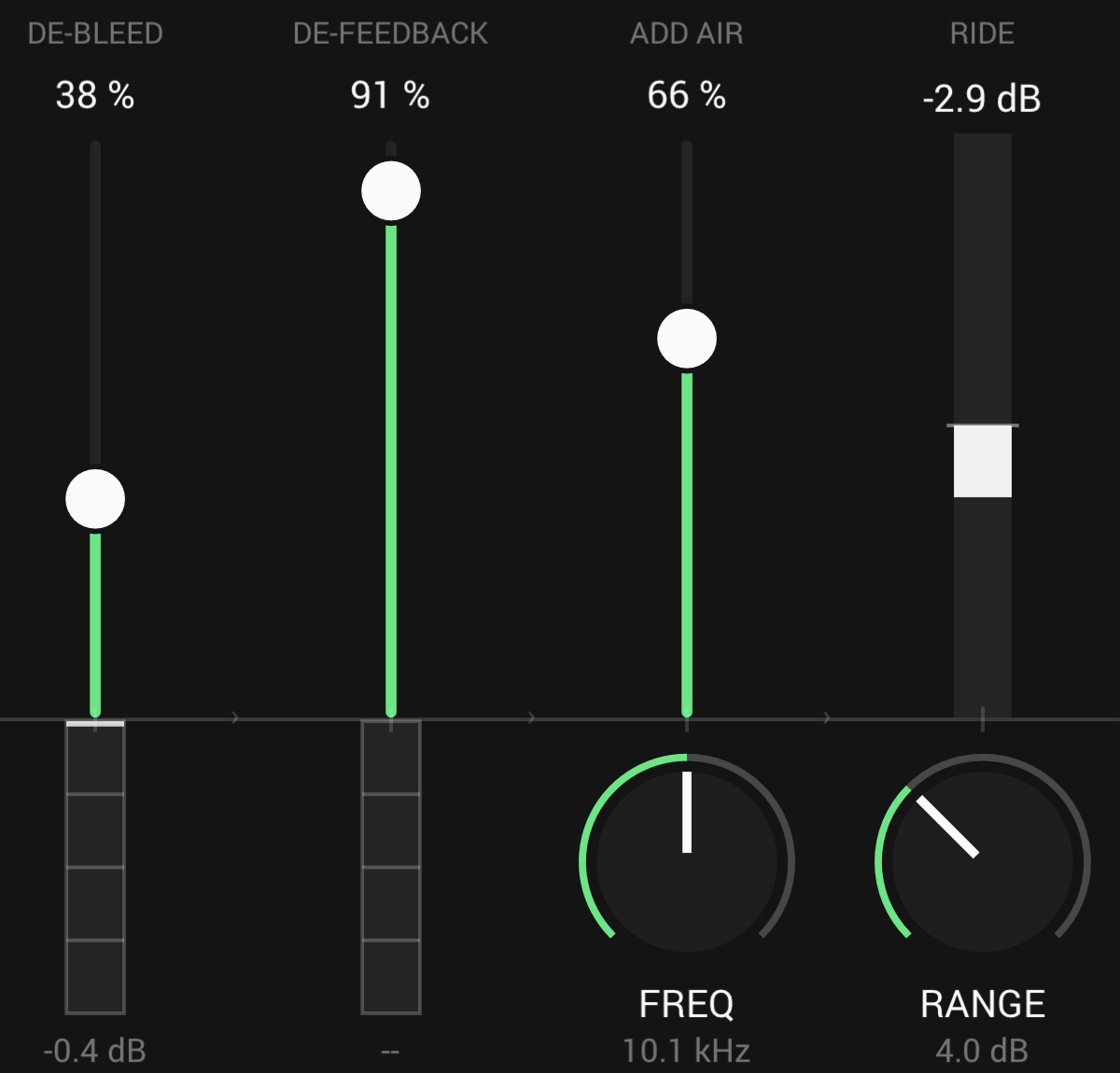
Ride
A gain rider that keeps the vocal at its level: it boosts within RANGE, up to 12 dB, and ducks further than it boosts.
De-bleed
A custom-trained AI model hears the singer, and InterMic turns the stage sound down around the voice, between the words and between the lines. ECO uses a lighter model and less CPU.
De-feedback
Finds acoustic feedback and notches it before it becomes a howl, with up to four notches at once.
Specs
- Latency
- 0 samples
- CPU
- 0.9% of a 14-core Apple M4 Pro, every stage on, mono, 48 kHz
- Formats
- VST3, Audio Unit
- macOS
- Apple silicon and Intel
- Windows
- x64
- Channels
- Mono, stereo
- Version
- 0.12.6
Download
New in 0.12.6
The footer shows InterMic's own logo. The interwebbi.com logo at the foot of the panel is now InterMic's lockup: the Interwebbi plug-ins' knob mark and the name beside it.
- Nothing you hear changed: no control, no default and no sound is different, and your projects and presets open as before.
The rest of the family
Adaptive tone
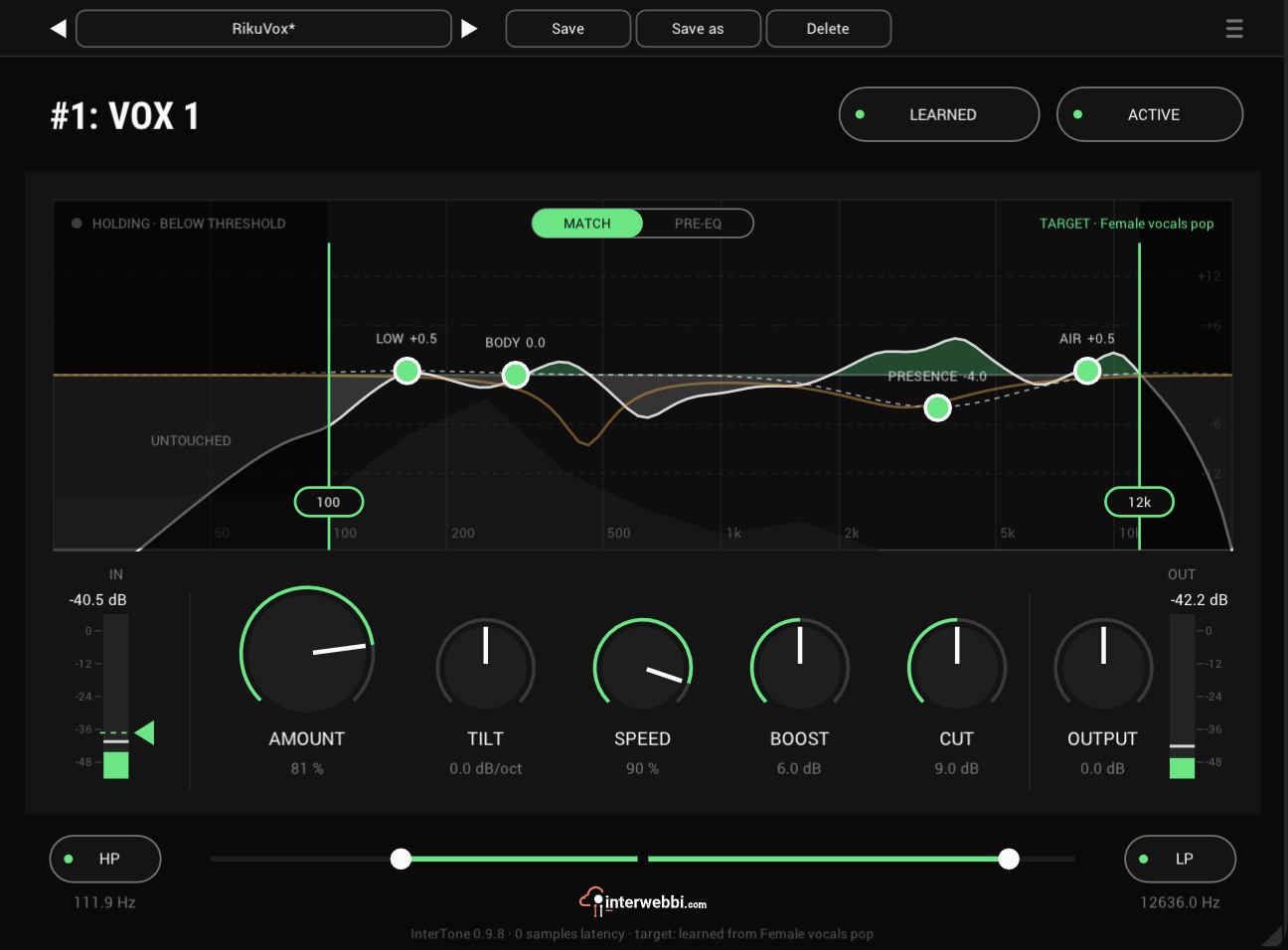
InterTone
Set the tone a source should have. It stays there as the playing changes, on vocals, guitars or drums.
Compressor
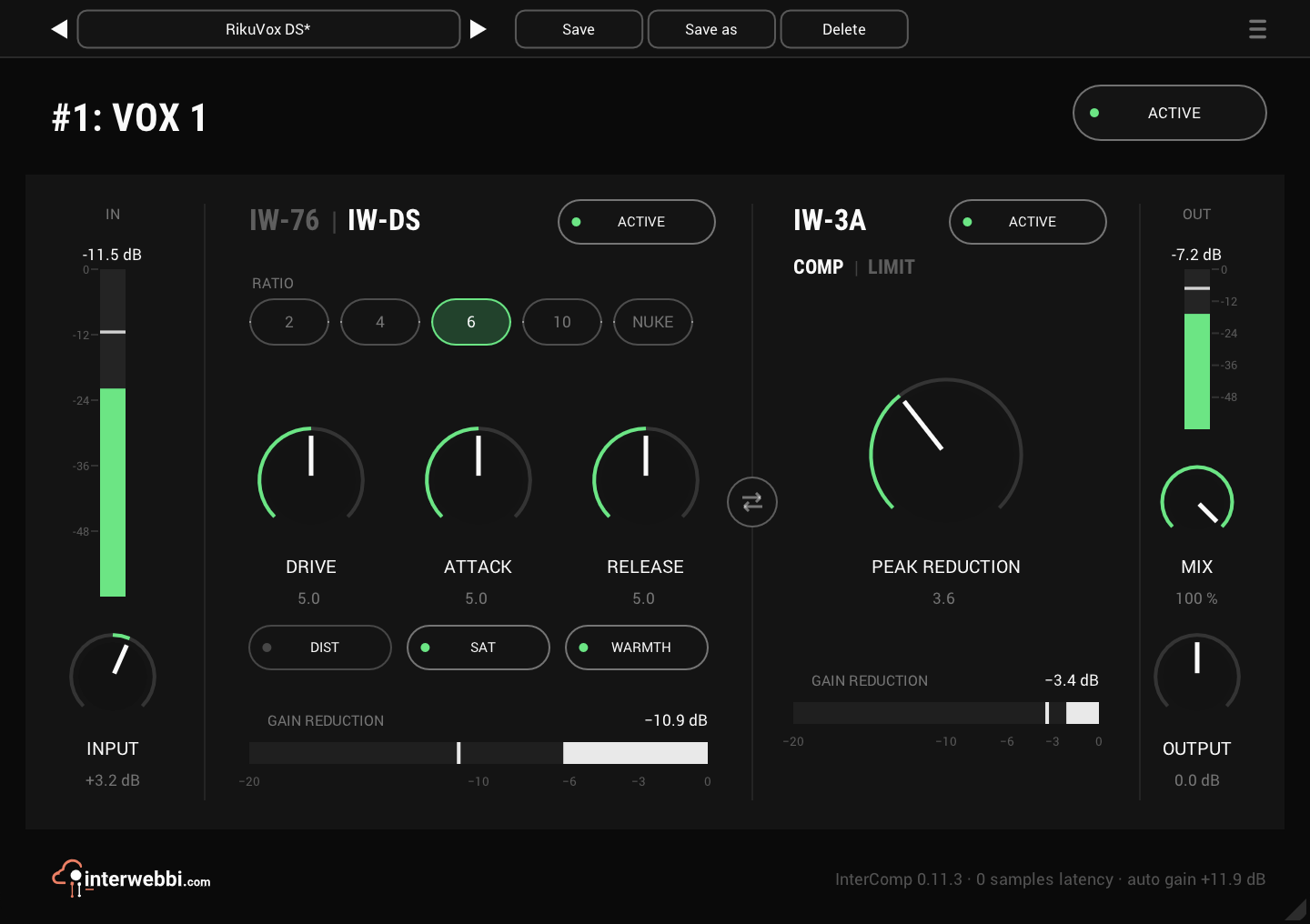
InterComp
A fast FET stage to grab the peaks, then a smooth optical leveller, with auto gain to keep the level matched.
Resonance, width, limiter
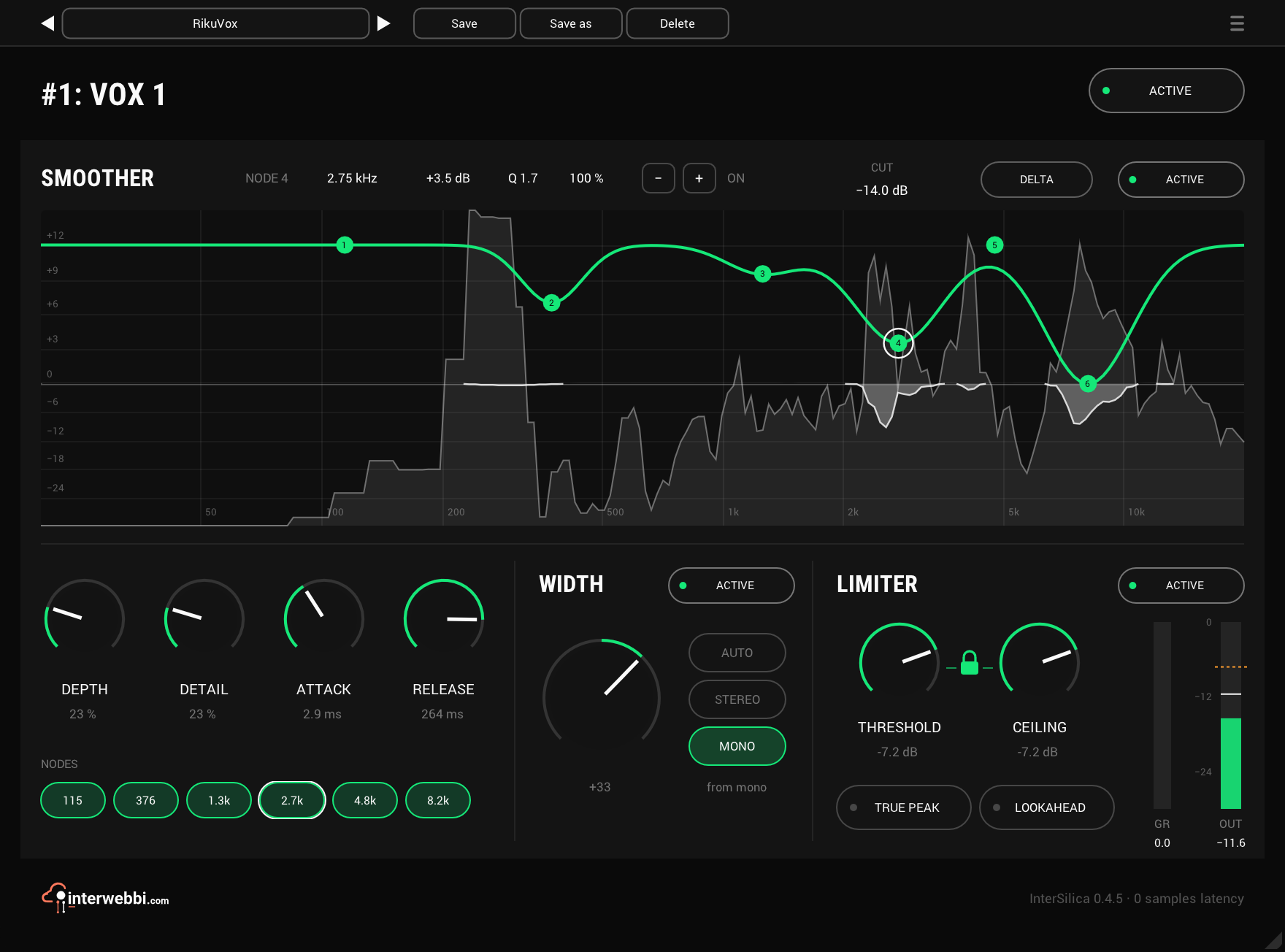
InterSilica
Shave the harshness, then seal the ceiling: a resonance suppressor, a one-knob stereo width and a limiter.
Network audio
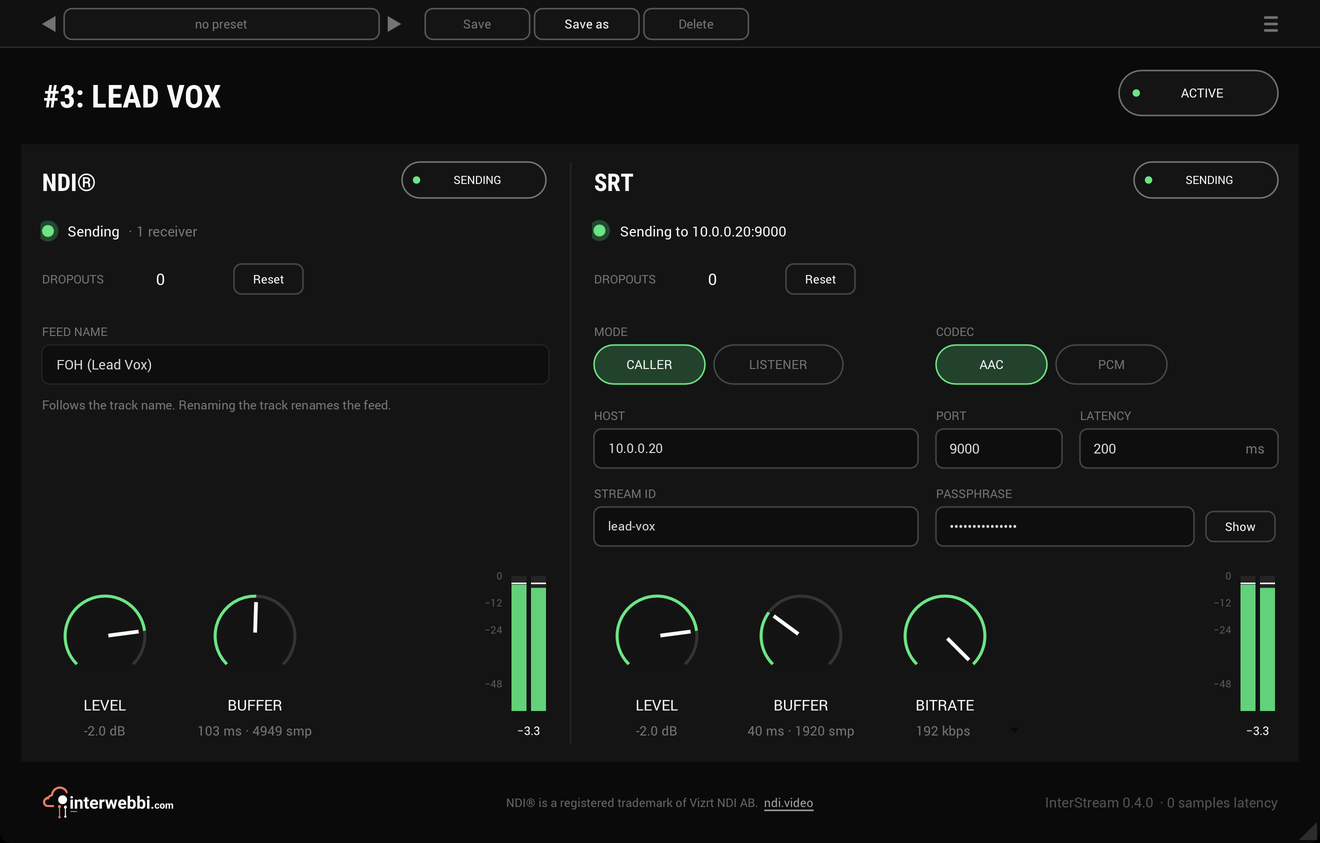
InterStream
Sends a track or a mix out as NDI® and SRT, straight from the insert, with the track untouched.
Mix balance
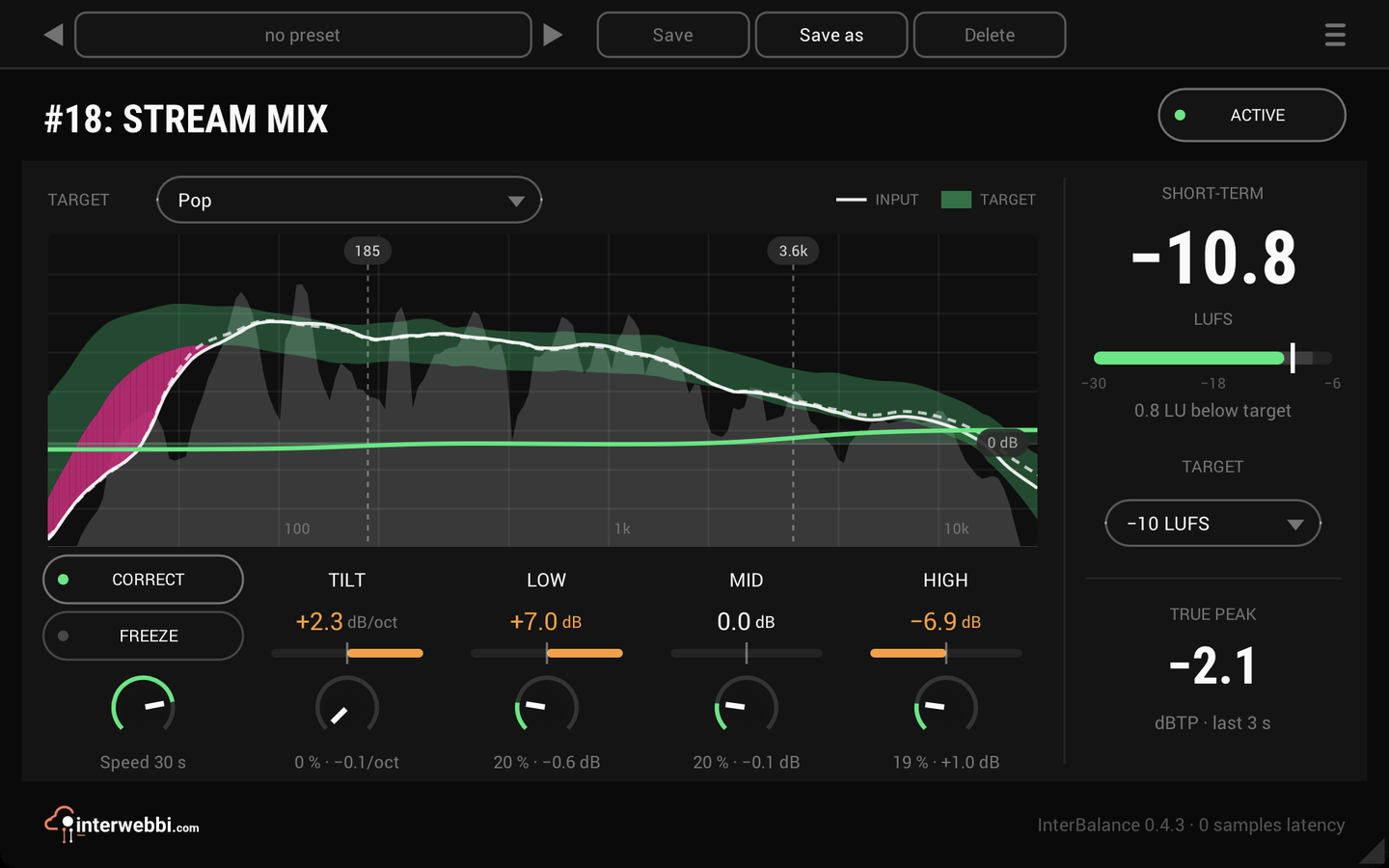
InterBalance
Checks your mix against a target in loudness and tone, and nudges it there slowly when you let it.
Master glue
InterMaster
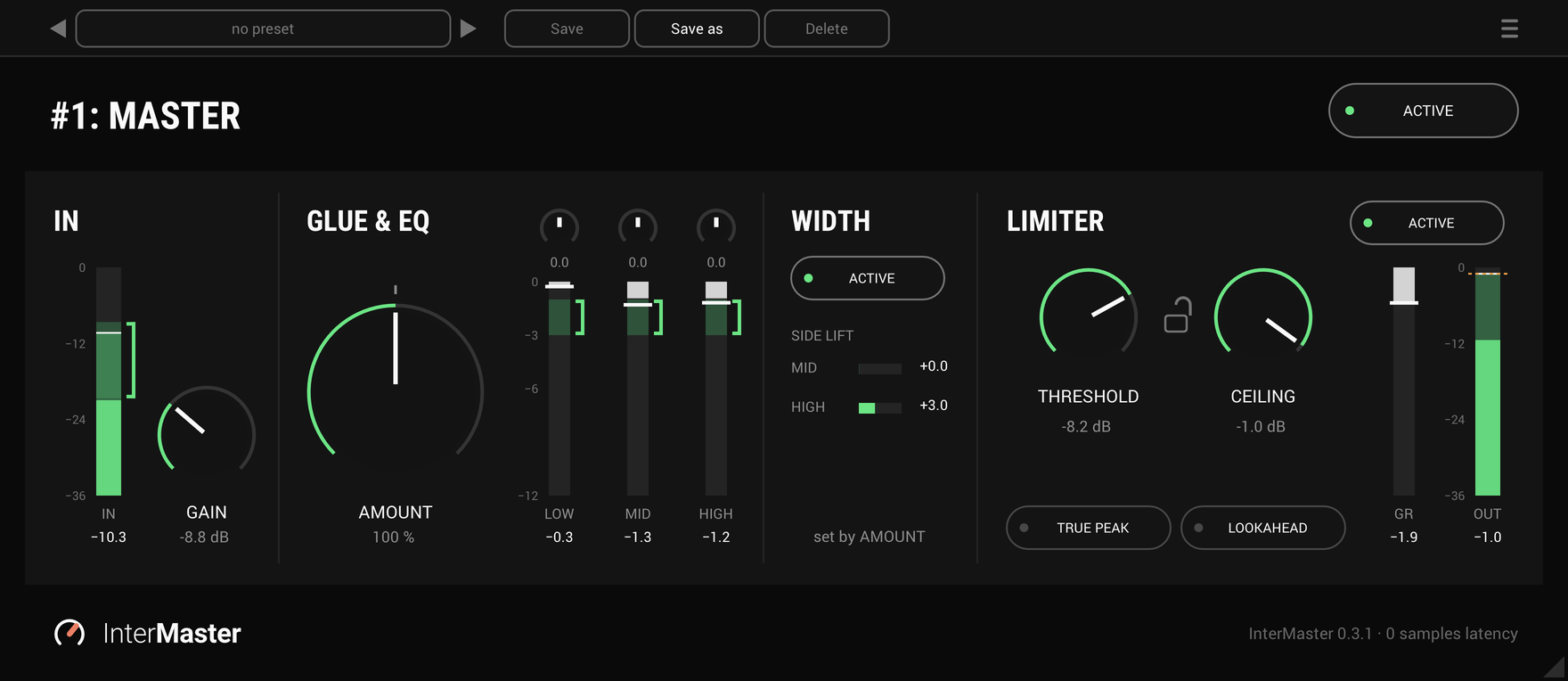
One knob that glues a whole mix together and makes it sound fuller, then a limiter seals the ceiling.
The Suite
Every Interwebbi plug-in, with one licence and one installer.